








How To Flowboard
How to Flowboard
March 18, 2013
Table of contents
3 finger swipe
Creating a flowboard
Creating a screen
Working with objects
Adding images
Adding video
Adding a gallery
Delete/duplicate screen
Arranging screens
Full screen objects
Copying a flowboard
Using layers
Adding links
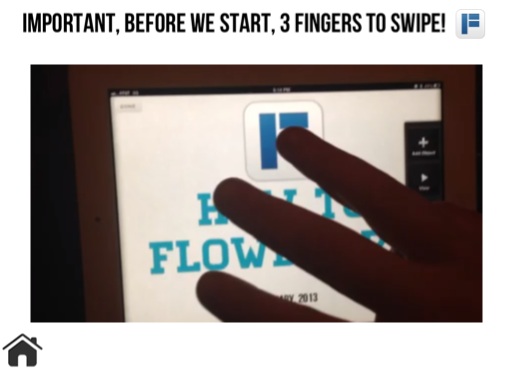
important, before we start, 3 fingers to swipe!
Creating a Flowboard
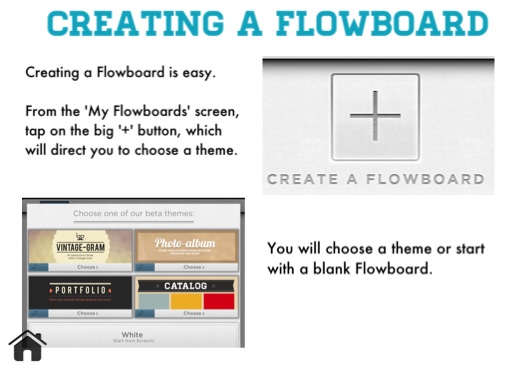
Creating a Flowboard is easy. From the 'My Flowboards' screen, tap on the big '+' button, which will direct you to choose a theme.
Here, you choose from our themes or you can start choose 'white' and 'start from scratch'.u
You will choose a theme or start with a blank Flowboard.
Creating Your first screen
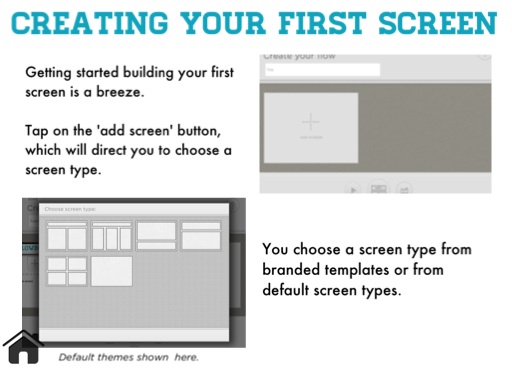
Getting started building your first screen is a breeze. Tap on the 'add screen' button, which will direct you to choose a screen type.
You choose a screen type from branded templates or from default screen types.
Default themes shown here.
working with objects
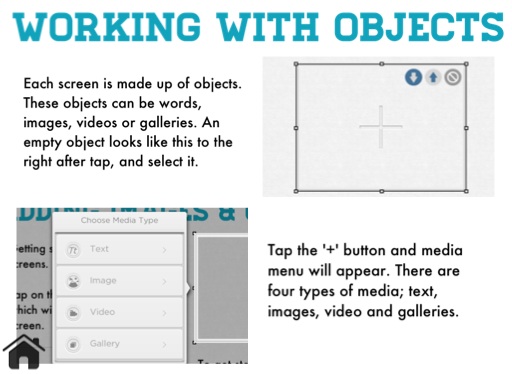
Each screen is made up of objects. These objects can be words, images, videos or galleries. An empty object looks like this to the right after tap, and select it.
Tap the '+' button and media menu will appear. There are four types of media; text, images, video and galleries.
Adding images
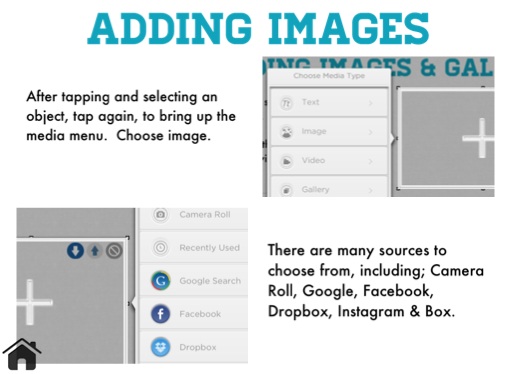
After tapping and selecting an object, tap again, to bring up the media menu. Choose image.
There are many sources to choose from, including; Camera Roll, Google, Facebook, Dropbox, Instagram & Box.
Adding images ii
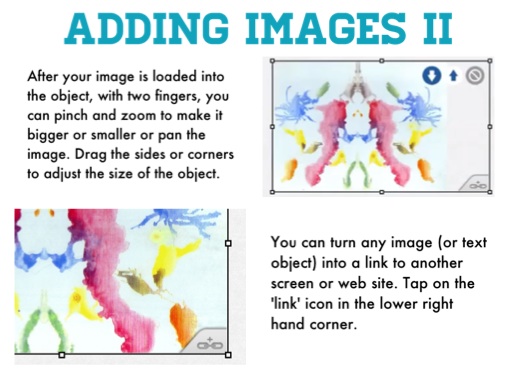
After your image is loaded into the object, with two fingers, you can pinch and zoom to make it bigger or smaller or pan the image. Drag the sides or corners to adjust the size of the object.
You can turn any image (or text object) into a link to another screen or web site. Tap on the 'link' icon in the lower right hand corner.
Adding Video
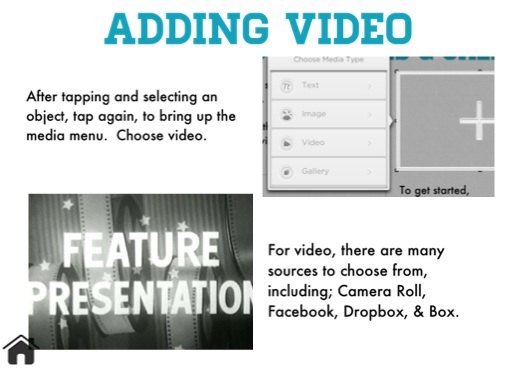
After tapping and selecting an object, tap again, to bring up the media menu. Choose video.
For video, there are many sources to choose from, including; Camera Roll, Facebook, Dropbox, & Box.
Adding Video II
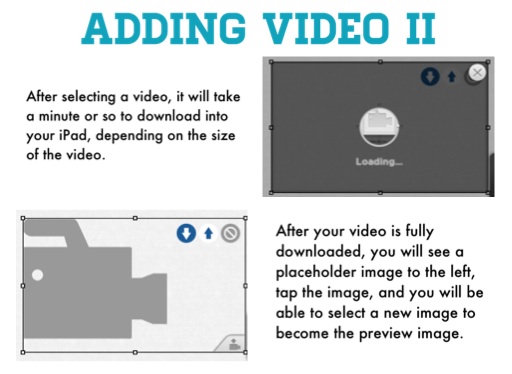
After selecting a video, it will take a minute or so to download into your iPad, depending on the size of the video.
After your video is fully downloaded, you will see a placeholder image to the left, tap the image, and you will be able to select a new image to become the preview image.
Adding a Gallery
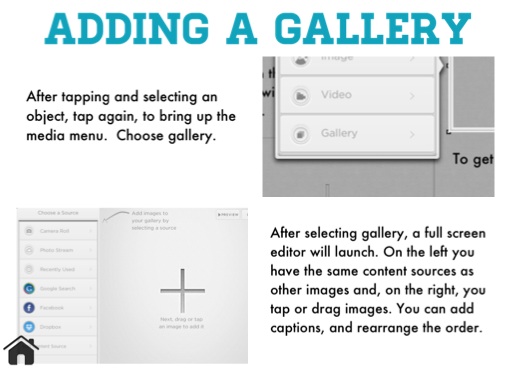
After tapping and selecting an object, tap again, to bring up the media menu. Choose gallery.
After selecting gallery, a full screen editor will launch. On the left you have the same content sources as other images and, on the right, you tap or drag images. You can add captions, and rearrange the order.
Adding a Gallery ii
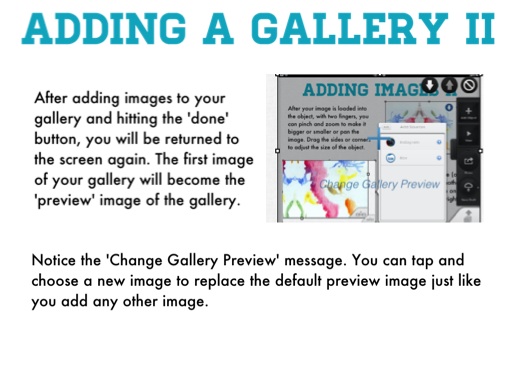
After adding images to your gallery and hitting the 'done' button, you will be returned to the screen again. The first image of your gallery will become the 'preview' image of the gallery.
Notice the 'Change Gallery Preview' message. You can tap and choose a new image to replace the default preview image just like you add any other image.
Delete/duplicate screen
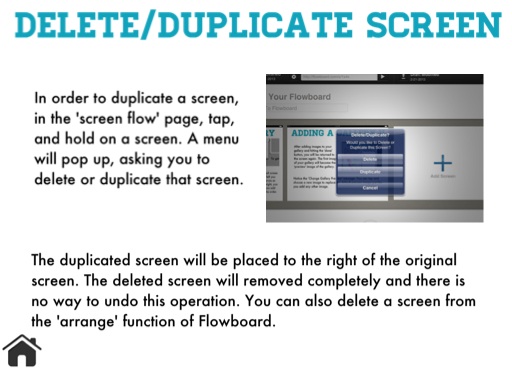
In order to duplicate a screen, in the 'screen flow' page, tap, and hold on a screen. A menu will pop up, asking you to delete or duplicate that screen.
The duplicated screen will be placed to the right of the original screen. The deleted screen will removed completely and there is no way to undo this operation. You can also delete a screen from the 'arrange' function of Flowboard.
Arranging screens
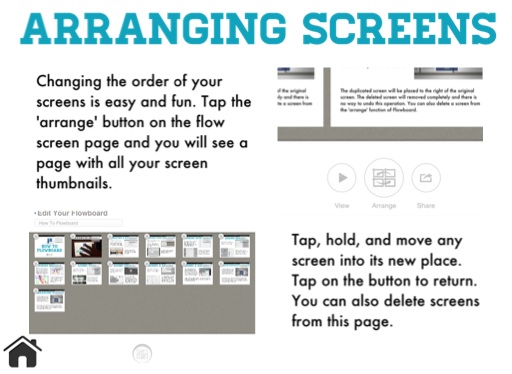
Changing the order of your screens is easy and fun. Tap the 'arrange' button on the flow screen page and you will see a page with all your screen thumbnails.
Tap, hold, and move any screen into its new place. Tap on the button to return. You can also delete screens from this page.
Full screen objects
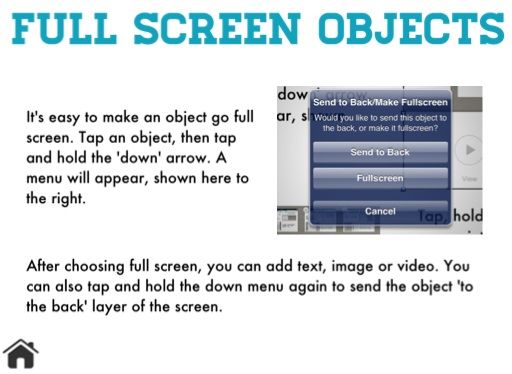
It's easy to make an object go full screen. Tap an object, then tap and hold the 'down' arrow. A menu will appear, shown here to the right.
After choosing full screen, you can add text, image or video. You can also tap and hold the down menu again to send the object 'to the back' layer of the screen.
Copying a flowboard
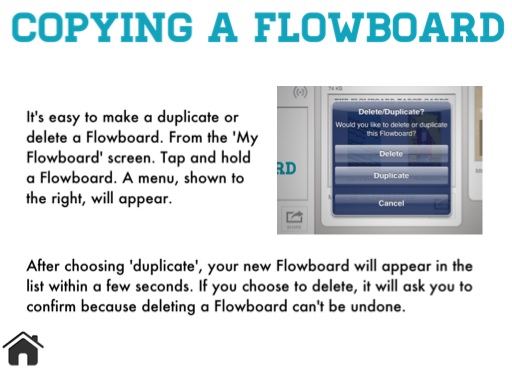
It's easy to make a duplicate or delete a Flowboard. From the 'My Flowboard' screen. Tap and hold a Flowboard. A menu, shown to the right, will appear.
After choosing 'duplicate', your new Flowboard will appear in the list within a few seconds. If you choose to delete, it will ask you to confirm because deleting a Flowboard can't be undone.
Using layers
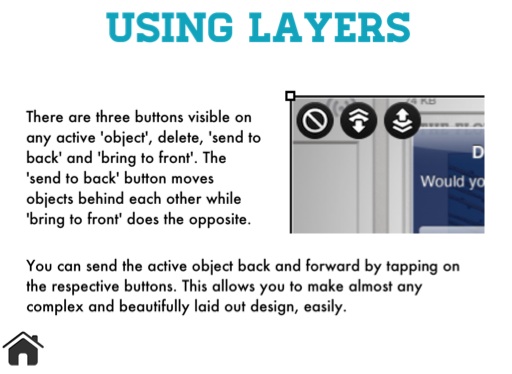
There are three buttons visible on any active 'object', delete, 'send to back' and 'bring to front'. The 'send to back' button moves objects behind each other while 'bring to front' does the opposite.
You can send the active object back and forward by tapping on the respective buttons. This allows you to make almost any complex and beautifully laid out design, easily.
Adding links
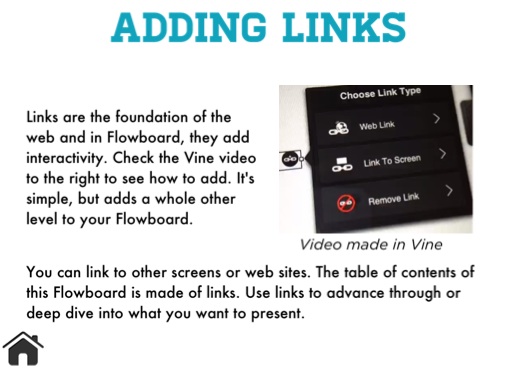
Links are the foundation of the web and in Flowboard, they add interactivity. Check the Vine video to the right to see how to add. It's simple, but adds a whole other level to your Flowboard.
Video made in Vine
You can link to other screens or web sites. The table of contents of this Flowboard is made of links. Use links to advance through or deep dive into what you want to present.