






New to Classroom iPads
Start Here
Mitch Mosbey Noblesville Schools
New to 1:1/2:1
[email protected] @mitchmosbey
primarytechteaching.com
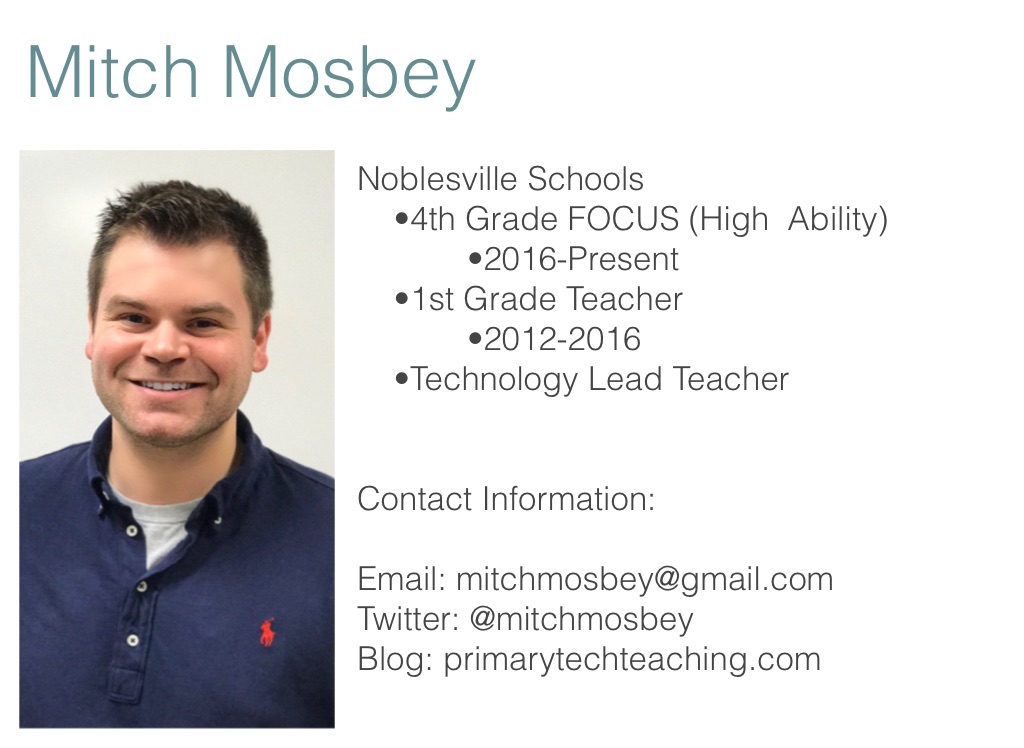
Mitch Mosbey
Noblesville Schools •4th Grade FOCUS (High Ability) •2016-Present •1st Grade Teacher •2012-2016 •Technology Lead Teacher Contact Information: Email: [email protected] Twitter: @mitchmosbey Blog: primarytechteaching.com
todaysmeet.com/newto1to1
OUTCOMES FOR SESSION
Resource
Getting Started
•Collaborate with your team •Create a vision of what you want to accomplish •Learning from others •Webinars •Twitter chats •Teacher blogs
ASK FOR HELP
We’ve all had to start somewhere
Starting with Students
Focus on one area and grow from there
Getting Started
•Workshop Model •Play, Minilesson, Guided and Independent Practice, Debriefing •Conferring •Complimenting, Questioning, and Coaching •Anchor Charts •Without technology, students can… •With technology, students can…
Getting Started
•Workshop Model •Play, Minilesson, Guided and Independent Practice, Debriefing •Conferring •Complimenting, Questioning, and Coaching •Anchor Charts •Without technology, students can… •With technology, students can…
Additional Tips
•"Join me on the floor with iPads screen down.” •Good for avoiding distractions of notifications •Students can easily turn over iPads for usage throughout lesson •"Come to the floor with iPads behind you” •Focus will be on the lesson and technology will be used later
LET’S TALK ABOUT APPS
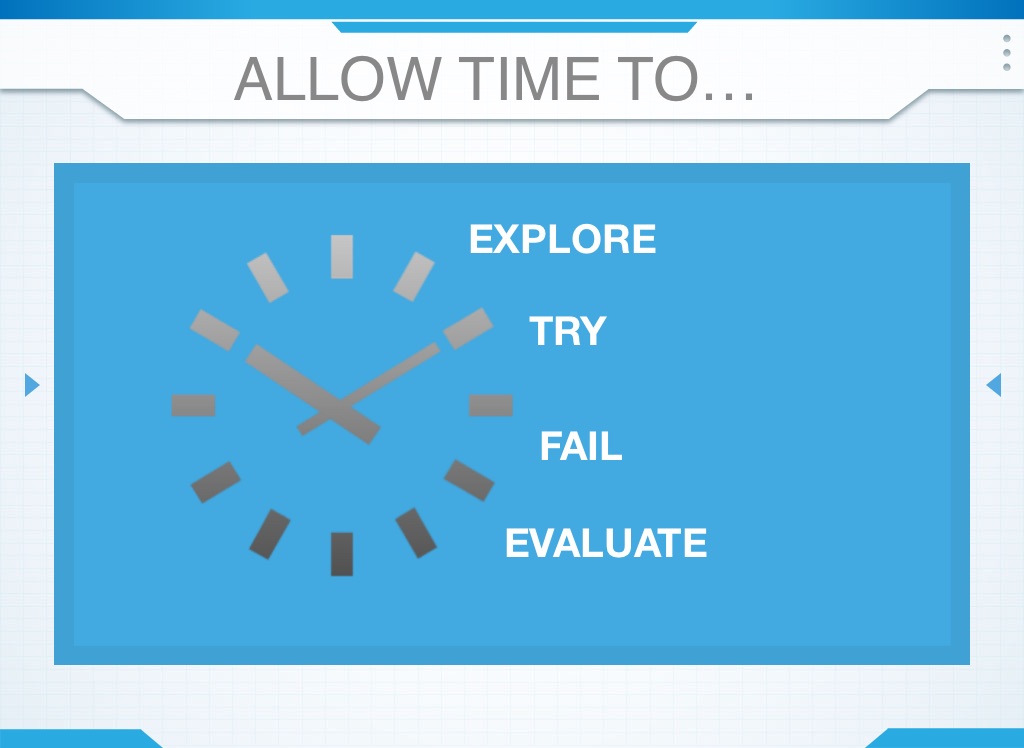
EXPLORE
ALLOW TIME TO…
TRY
FAIL
EVALUATE
•Start with a few steps each day. •Build bit by bit •Have students lead the steps from previous days
App Learning Progressions
APP Badges
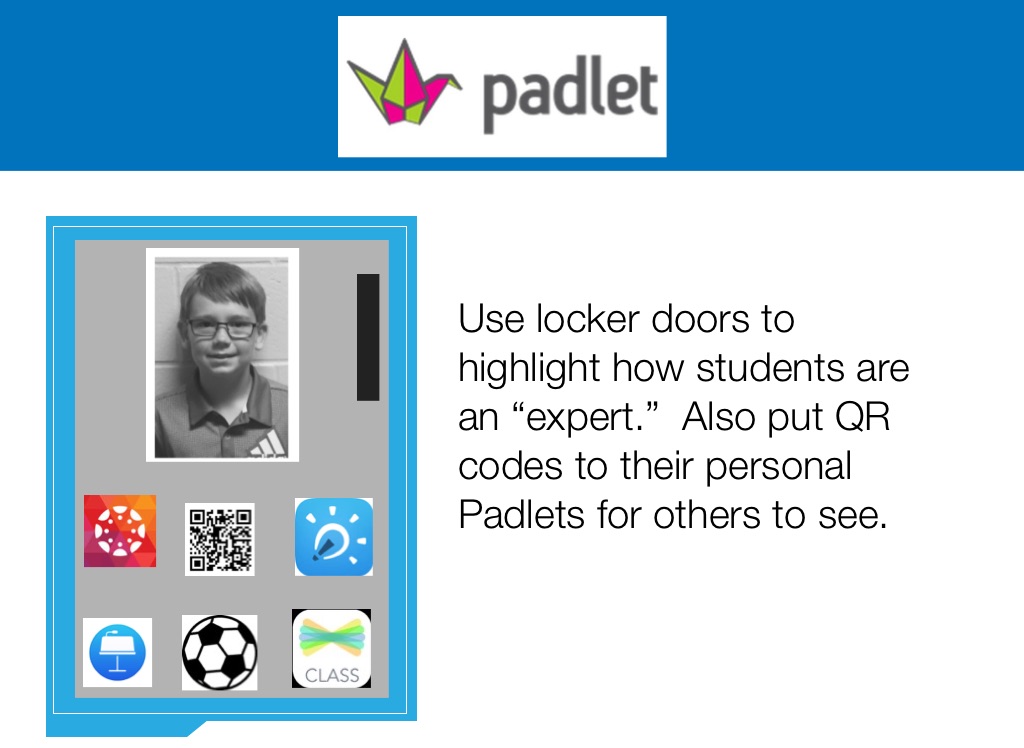
Have small challenges for students to earn an app badge. When students earn this badge, they can put it on their locker/cubby to let others know they can help. Think about letting students think of 3 things they are good at. (All students get badges)
LESS IS MORE
Find core group of apps
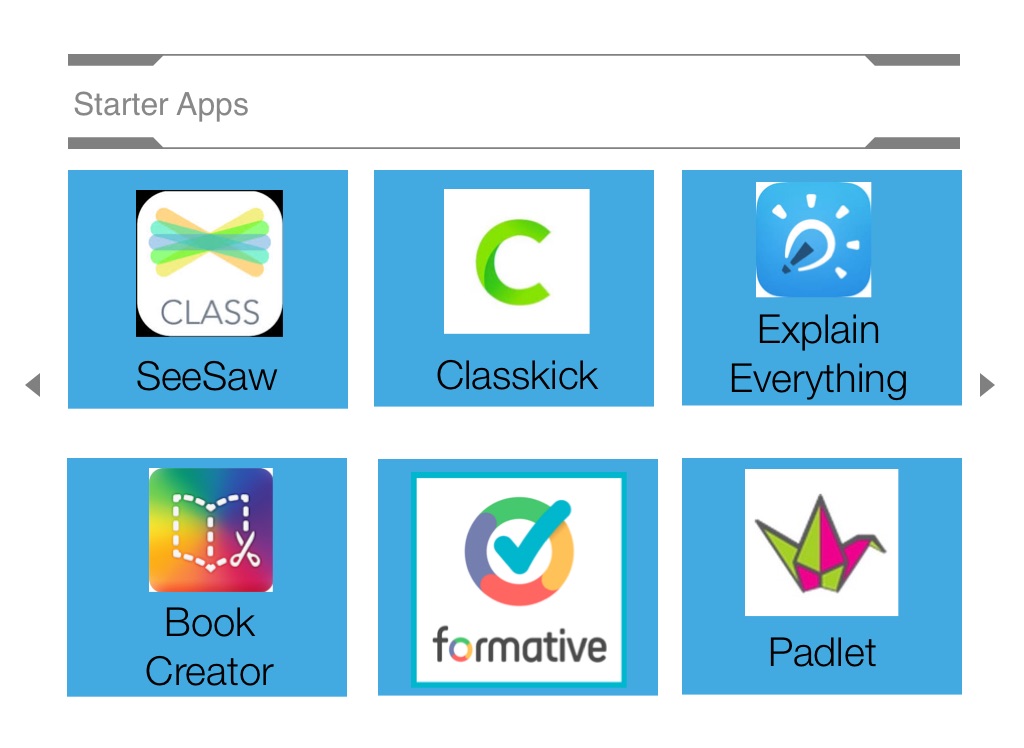
Explain Everything
Starter Apps
SeeSaw
Classkick
Book Creator
Padlet
-Students can easily upload items to their Learning Portfolio -Teachers approve items before they are visible to family members -Apps for classrooms and families -Parents can pay to see portfolio year after year (if multiple grade levels use it)
Easy to make videos to showcase understanding
Book Creator
ClassKick
•Add photos •Add audio (instructions) •Type questions •Import PDFs •Share with team
ClassKick
•See all of your students on one screen •Students raise hands for help •Ability to help one another
goformative.com
Web-based app Use PDFs or import images Can be embedded into Canvas or other LMS
goformative.com
Can be part of a lesson or a pre-assessment for the next day’s lesson Part of a Canvas page
Explain Everything
•Great for tutorials •Front load students with lessons •Interactive Whiteboard •Students can create videos of their learning
Use locker doors to highlight how students are an “expert.” Also put QR codes to their personal Padlets for others to see.
Keep it Simple
User Friendly Buttons-Click on Images to Download Pictures