







Edmodo in the K-8 Classroom
Edmodo in the K-8 Classroom
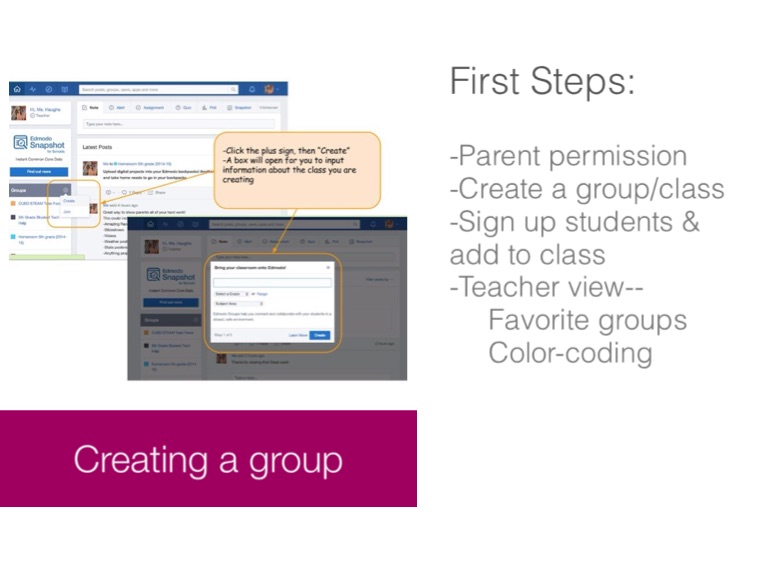
First Steps:
-Parent permission -Create a group/class -Sign up students & add to class -Teacher view-- Favorite groups Color-coding
Creating a group
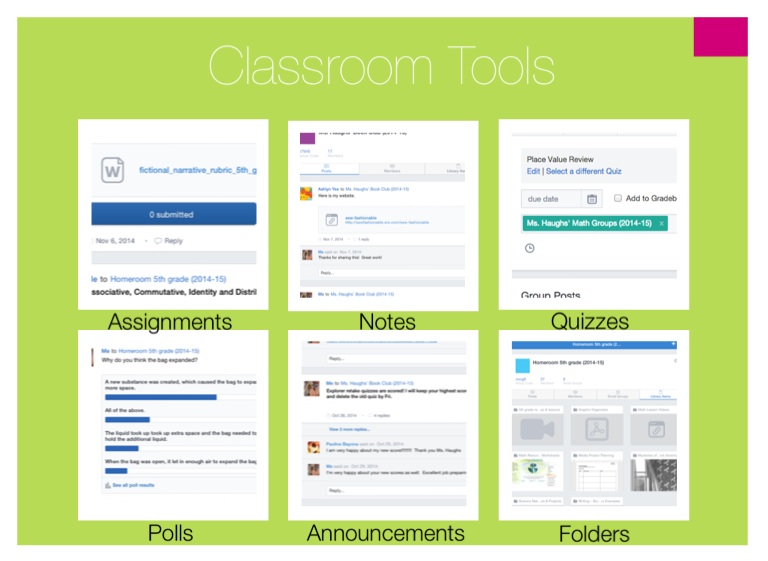
Classroom Tools
Assignments
Notes
Quizzes
Polls
Announcements
Folders
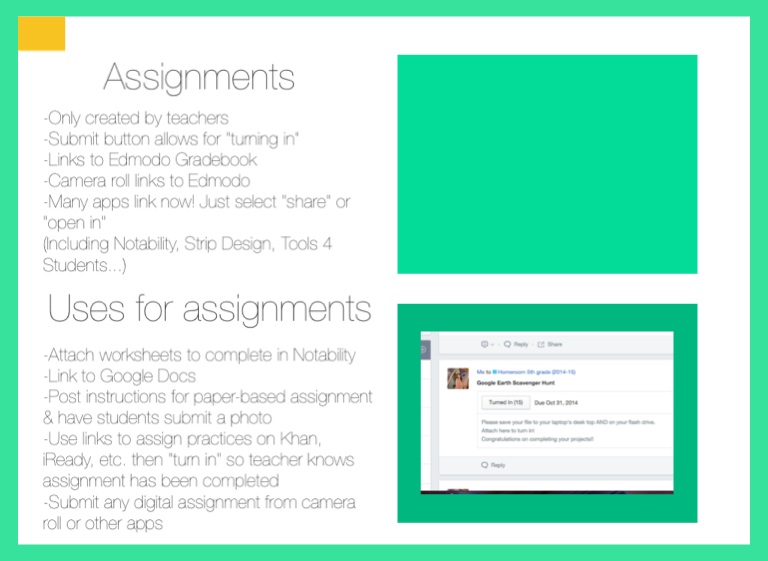
Assignments
-Only created by teachers -Submit button allows for "turning in" -Links to Edmodo Gradebook -Camera roll links to Edmodo -Many apps link now! Just select "share" or "open in" (Including Notability, Strip Design, Tools 4 Students...)
Uses for assignments
-Attach worksheets to complete in Notability -Link to Google Docs -Post instructions for paper-based assignment & have students submit a photo -Use links to assign practices on Khan, iReady, etc. then "turn in" so teacher knows assignment has been completed -Submit any digital assignment from camera roll or other apps
Notes
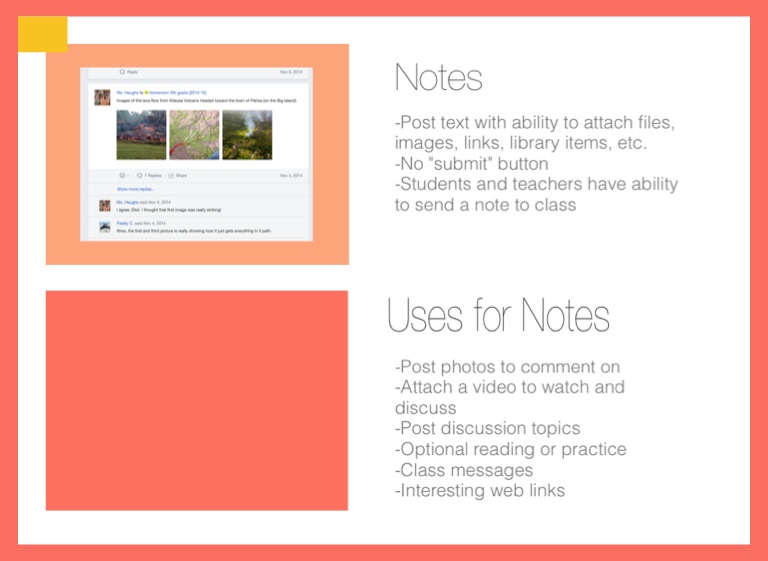
-Post text with ability to attach files, images, links, library items, etc. -No "submit" button -Students and teachers have ability to send a note to class
Uses for Notes
-Post photos to comment on -Attach a video to watch and discuss -Post discussion topics -Optional reading or practice -Class messages -Interesting web links
Quizzes
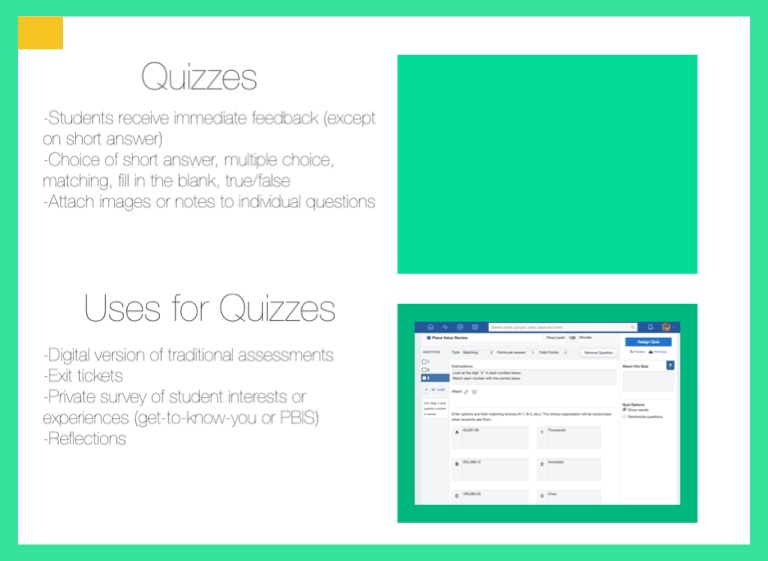
-Students receive immediate feedback (except on short answer) -Choice of short answer, multiple choice, matching, fill in the blank, true/false -Attach images or notes to individual questions
Uses for Quizzes
-Digital version of traditional assessments -Exit tickets -Private survey of student interests or experiences (get-to-know-you or PBIS) -Reflections
Polls
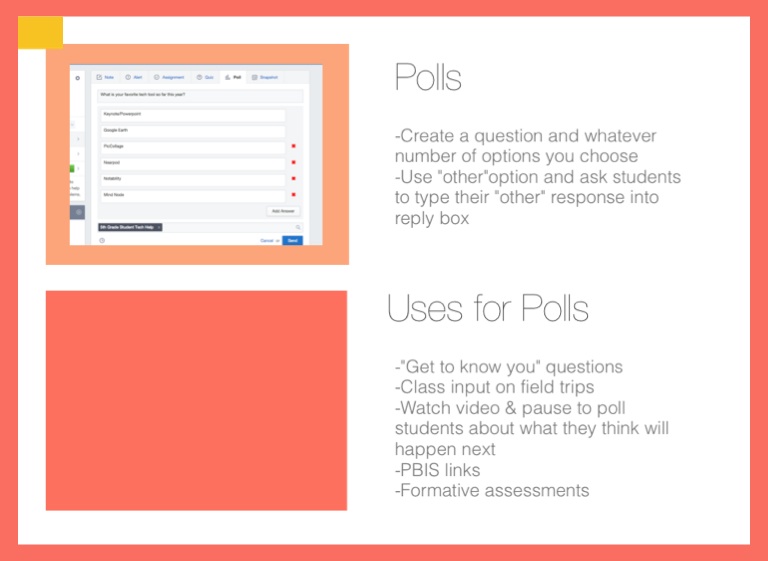
-Create a question and whatever number of options you choose -Use "other"option and ask students to type their "other" response into reply box
Uses for Polls
-"Get to know you" questions -Class input on field trips -Watch video & pause to poll students about what they think will happen next -PBIS links -Formative assessments
Announcements
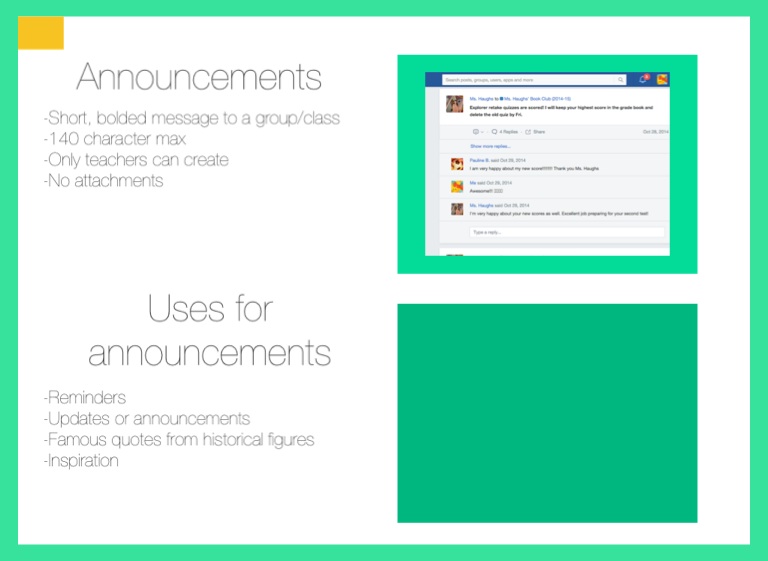
-Short, bolded message to a group/class -140 character max -Only teachers can create -No attachments
Uses for announcements
-Reminders -Updates or announcements -Famous quotes from historical figures -Inspiration
Folders
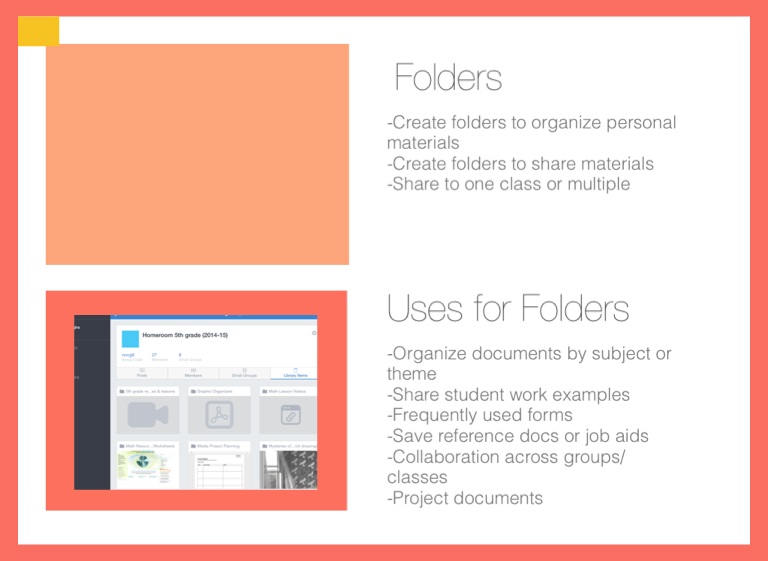
-Create folders to organize personal materials -Create folders to share materials -Share to one class or multiple
Uses for Folders
-Organize documents by subject or theme -Share student work examples -Frequently used forms -Save reference docs or job aids -Collaboration across groups/classes -Project documents
Scheduled Posts
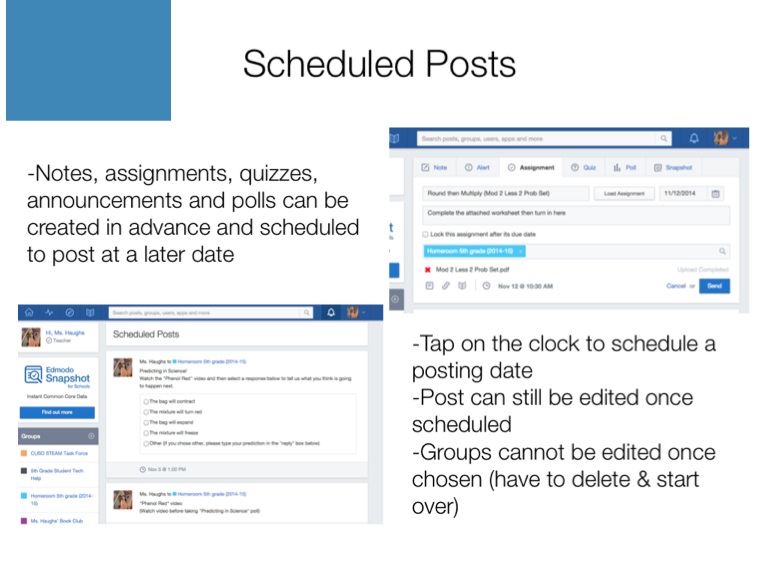
-Notes, assignments, quizzes, announcements and polls can be created in advance and scheduled to post at a later date
-Tap on the clock to schedule a posting date -Post can still be edited once scheduled -Groups cannot be edited once chosen (have to delete & start over)
Progress Screens
Snapshot
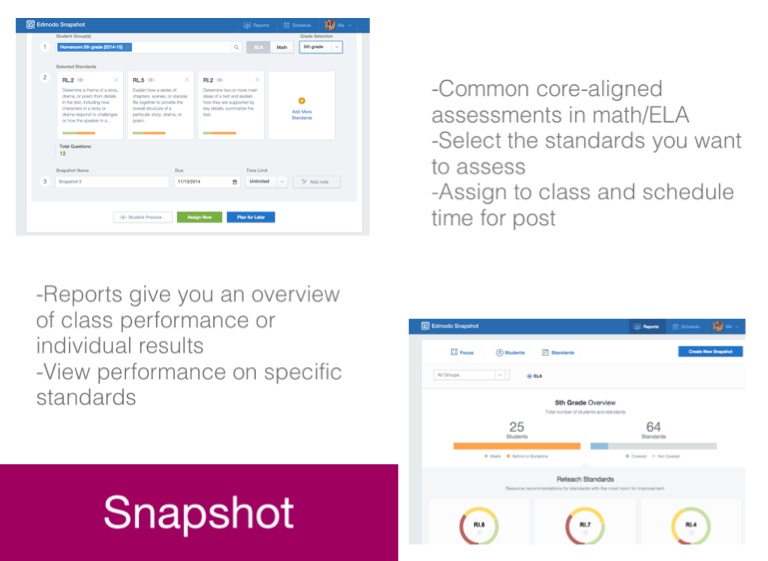
-Common core-aligned assessments in math/ELA -Select the standards you want to assess -Assign to class and schedule time for post
-Reports give you an overview of class performance or individual results -View performance on specific standards
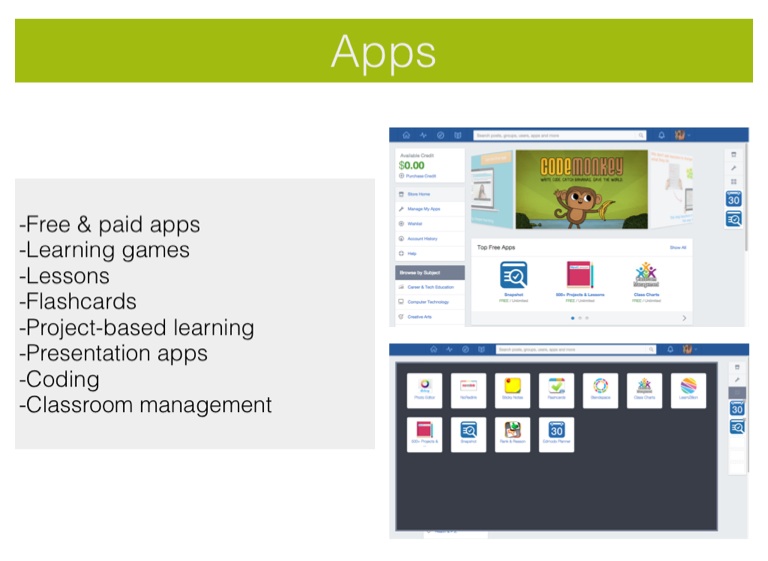
Apps
-Free & paid apps -Learning games -Lessons -Flashcards -Project-based learning -Presentation apps -Coding -Classroom management
Edmodo, part 2
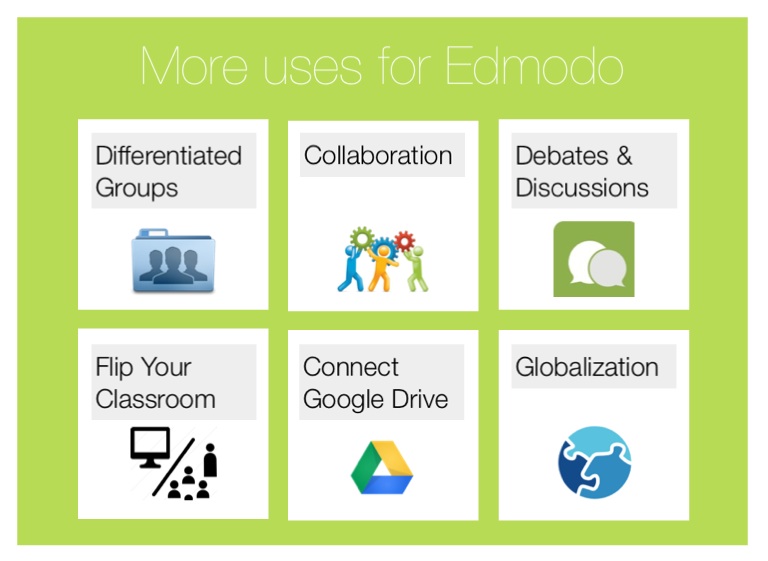
More uses for Edmodo
Differentiated Groups
Collaboration
Debates & Discussions
Flip Your Classroom
Connect Google Drive
Globalization
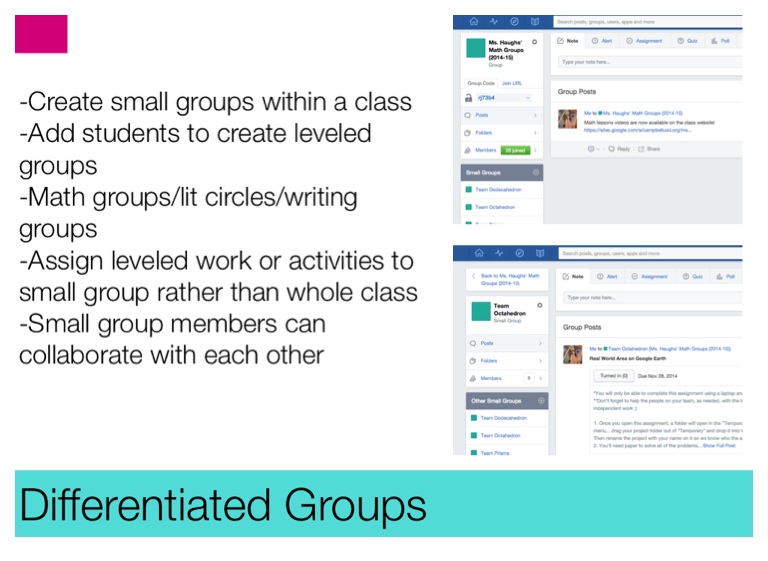
Differentiated Groups
-Create small groups within a class -Add students to create leveled groups -Math groups/lit circles/writing groups -Assign leveled work or activities to small group rather than whole class -Small group members can collaborate with each other
Collaboration
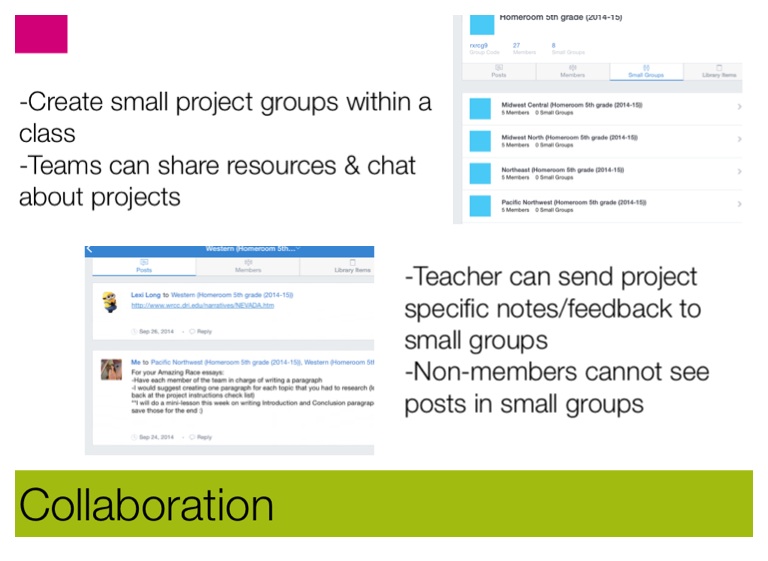
-Create small project groups within a class -Teams can share resources & chat about projects
-Teacher can send project specific notes/feedback to small groups -Non-members cannot see posts in small groups
Debates & Discussions
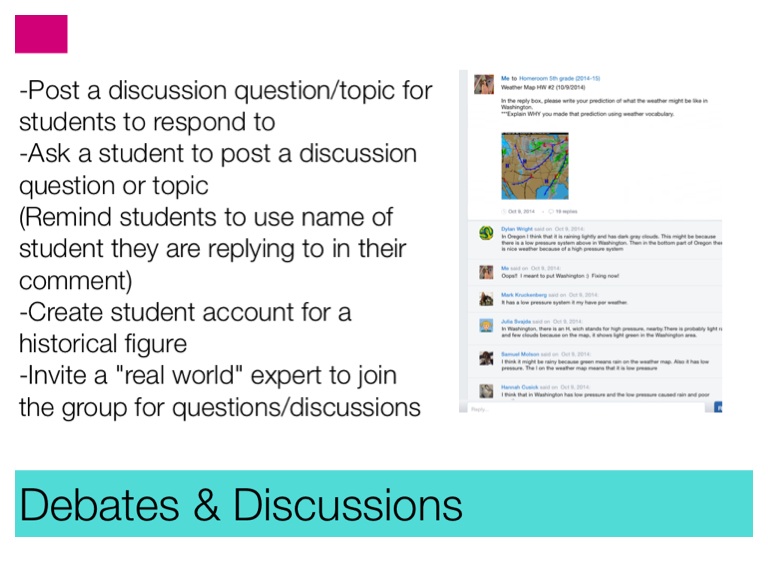
-Post a discussion question/topic for students to respond to -Ask a student to post a discussion question or topic (Remind students to use name of student they are replying to in their comment) -Create student account for a historical figure -Invite a "real world" expert to join the group for questions/discussions
Flip your Classroom
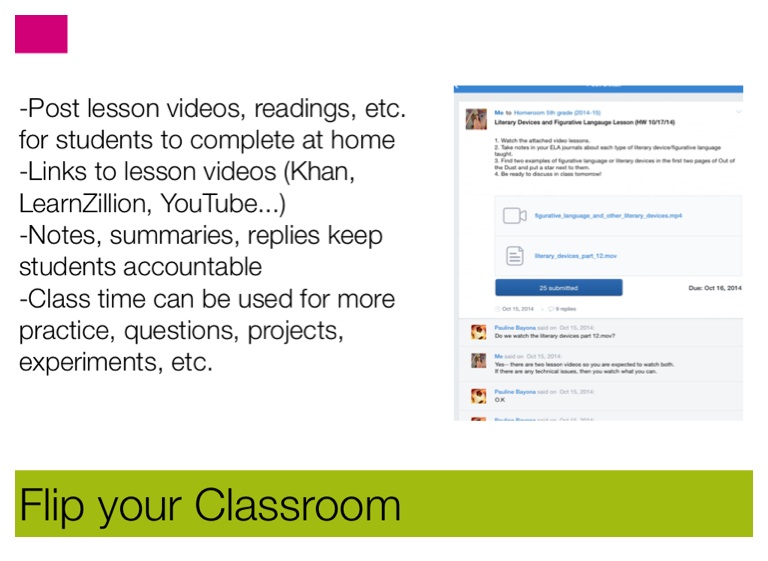
-Post lesson videos, readings, etc. for students to complete at home -Links to lesson videos (Khan, LearnZillion, YouTube...) -Notes, summaries, replies keep students accountable -Class time can be used for more practice, questions, projects, experiments, etc.
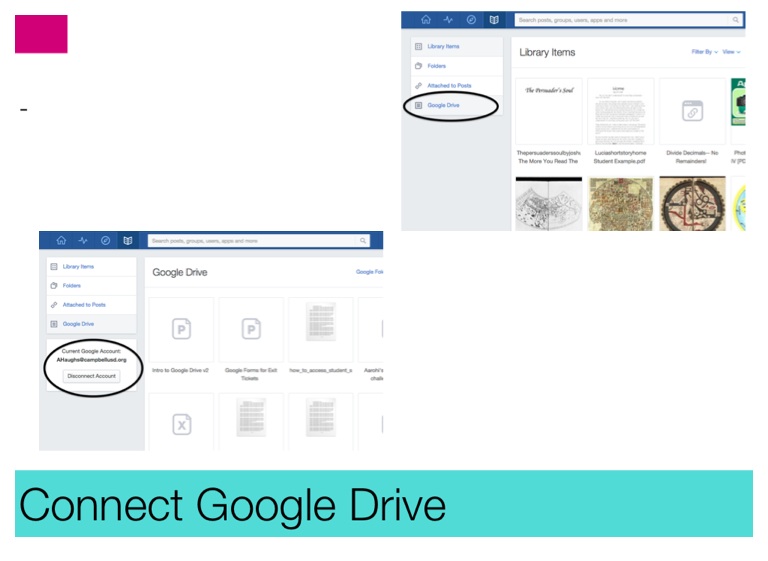
Connect Google Drive
Globalization
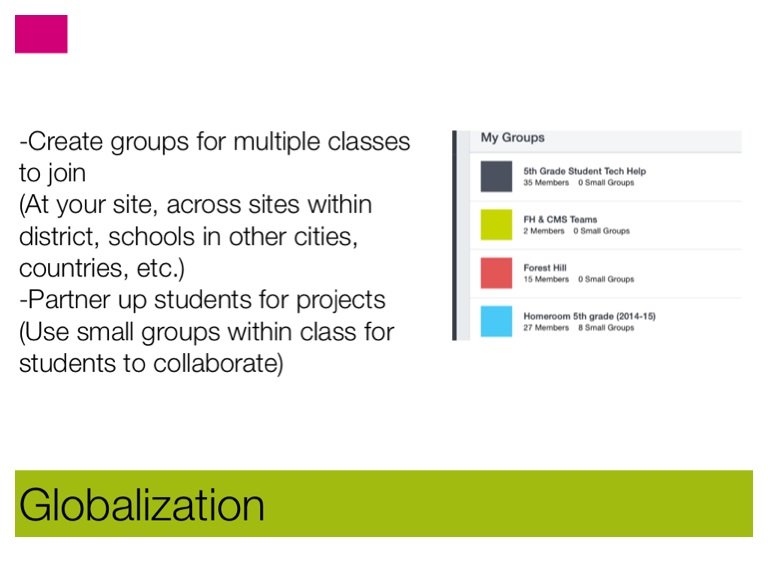
-Create groups for multiple classes to join (At your site, across sites within district, schools in other cities, countries, etc.) -Partner up students for projects (Use small groups within class for students to collaborate)