








For Students: Guide to Technology at Moravian College
For Students: Guide to Campus Technology
technology orientation videos and resources
updated 08/2016
This is a self-paced orientation for new students about how to use technology at Moravian. Each topic contains important information and video tutorials, which are marked with this icon:
All videos have CC and language support. Press the CC button to turn on closed captioning in YouTube or the gear icon to change the language and toggle the subtitles on or off.
Table of Contents
Intro to Technology at Moravian College
NetID and NetID Password
Gmail & Google Drive
AMOS
Canvas
lynda.com (online software training library)
Office 365 (latest version of Microsoft Office)
Zoom (Cloud video conferencing)
MacBook/iPad Program
Getting Help
Security & Policies
NetID & Okta
What is it used for?
Okta registration & password reset
NetID and NetID Password
Your NetID is used to logon to the various Moravian online resources such as: • Okta • AMOS • Canvas • MCWireless network • Office 365 • lynda.com training • Zoom • Classroom/lab computers
Next slide: Changing/resetting your NetID Password with Okta—>
Okta is a service that includes single sign-on, as well as a tool for resetting your password and unlocking your account. The single sign-on service means that you will be able to use a single username and password to access all of the applications we add to Okta. After logging into Okta, you will also be able to access all of the other applications without having to log in again. The password reset and account unlock pieces make it easier than ever to securely manage your account without having to call the IT Help Desk.
To log into Okta: www.moravian.edu/login
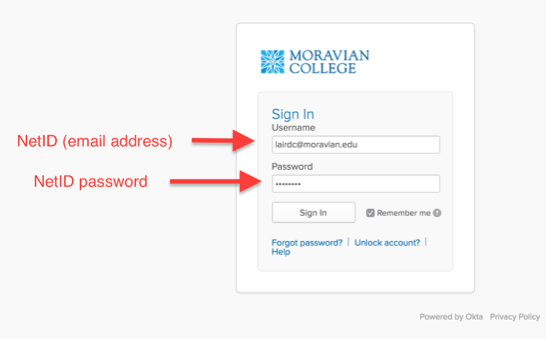
At the login page, use your NetID (ex: [email protected]) and NetID password (which is used to log into AMOS, wireless, etc):
If it is your first time logging in, you will be asked to set up your security settings. Your secondary email, security question, and phone number can all be used when unlocking your account or resetting your password:
If you choose to add your cell phone number, you will be sent a verification number and will see this once you have successfully verified your phone:
After logging in and setting up your account, you will be greeted by your Okta dashboard. On this page, you will see the applications that are available to you, and will be able to launch them simply by clicking on them.
Within your settings page in Okta, you will be able to update your security settings, as well as change your NetID password:
Gmail Login/Password
Google Drive
AMOS
AMOS Video Guide
Portal to check grades, schedules, order textbooks, request transcripts, pay bills, etc.
Intro to Canvas at Moravian College
Moravian’s Learning Management System (LMS) canvas.moravian.edu
Canvas for Students
Visit the Canvas for Students guide on the IT Help Wiki for information on how to login to Canvas, set your user preferences, submit assignments, communicate with your instructors, and more. Click here for: Canvas for Students guide
How to use lynda.com
lynda.com | Premium Online Software Training
lynda.com is designed for all levels of learners and is available to all Moravian College faculty, staff, and students. lynda.com provides a vast online library of instructional videos covering the latest software, creative and business skills. Taught by accomplished instructors and recognized industry experts, lynda.com is a high-quality resource for faculty, staff and students looking to develop skills in Microsoft Office, Adobe Creative Suite, time management, HTML coding, and much more. Courses are segmented so you can watch as little or as much as you want. With more than 4,000 courses taught by industry experts, lynda.com is designed for all levels of learners and new courses are added weekly. Access the lynda.com library 24/7—even from your iPhone, iPad, Android device, or mobile phone. Exercise files let you follow along with the instruction as you learn, and bookmarks help keep track of what you’d like to watch. CLICK HERE FOR INSTRUCTIONS ON ACCESSING LYNDA
Downloading Office 365 for student use
Office 365 | Microsoft Office 2016
As a Moravian College student, you have access to the latest version of the Microsoft Office suite, which is version 2016, called “Office 365”. CLICK HERE TO FIND OUT HOW TO DOWNLOAD OFFICE 365
Zoom access for students
Zoom | Cloud video conferencing
Zoom is a web conferencing tool currently available to all Moravian College faculty, staff, and students. A regular Zoom meeting can support up to 50 simultaneous video users, while a large meeting can support up to 100 video users. Zoom also includes a webinar tool for very large meetings or classes. Zoom provides high-quality HD audio and video, intuitive sharing and co-annotation tools, breakout rooms, screen-sharing, white-boarding tools, the ability to easily add content to a meeting on the fly, and the ability to record meetings. Zoom also integrates into Canvas and has apps for all platforms, including fully featured iOS and Android apps. Zoom's high-quality video and recording features also allow for recording simple videos with a webcam. Students can login to Zoom straight from the Okta dashboard (or use the feature within Canvas). Students have a “Basic Account”, while faculty and staff have a “Pro Account.” The Basic account limits meeting length to 40 minutes. If you need more time, all you need to do is fire up another meeting. INSTRUCTIONS FOR LOGGING INTO ZOOM
MacBook
MacBook: What’s installed?
& iPad
iPad Setup
The AppleID
AppleCare Coverage
Note: If you are not part of the MacBook/iPad program, you can skip this section and continue on to the Getting Help section.
Getting Help
IT Help Page
IT Help Desk
Getting Help Video
IT Help Desk
Memorial Hall, Room 102 | Fall hours: Mon-Fri 7:30am – 4:30pm Phone: 610-861-1500 | [email protected]
Security & Policies
Acceptable Use Policy
e2Campus
MacBook/iPad Contract