







Science Pd workshop
blake middle school
1:1 iPads in the Science Classroom
https://flowboard.com/s/7xj
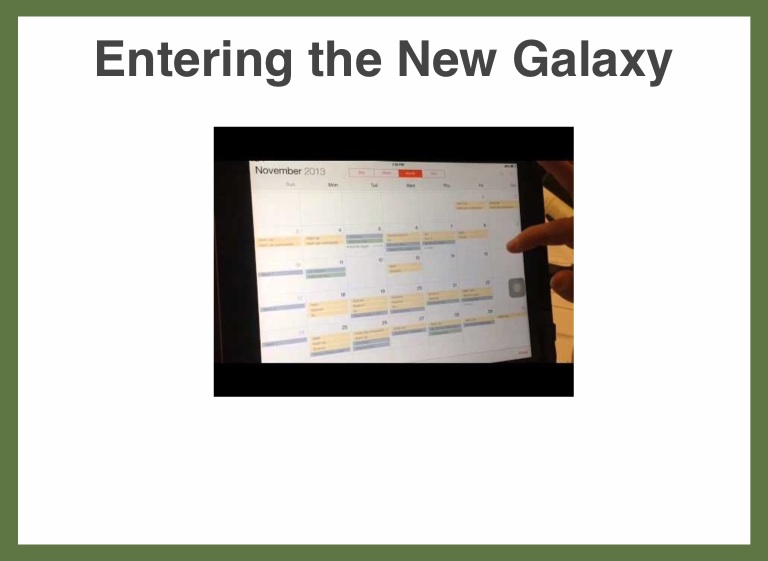
Entering the New Galaxy
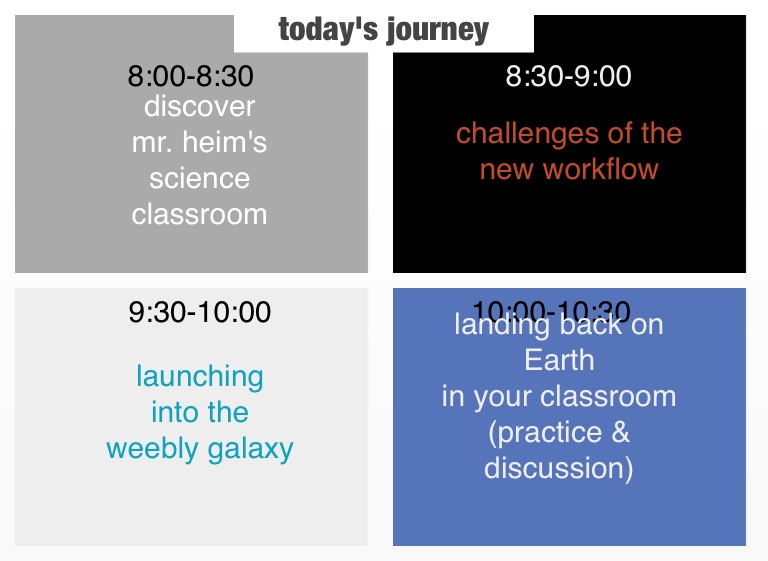
today's journey
8:00-8:30
8:30-9:00
discover mr. heim's science classroom
challenges of the new workflow
9:30-10:00
10:00-10:30
landing back on Earth in your classroom (practice & discussion)
launching into the weebly galaxy
ipad setup
explain everything google drive google docs weebly nearpod dropbox
apple tv
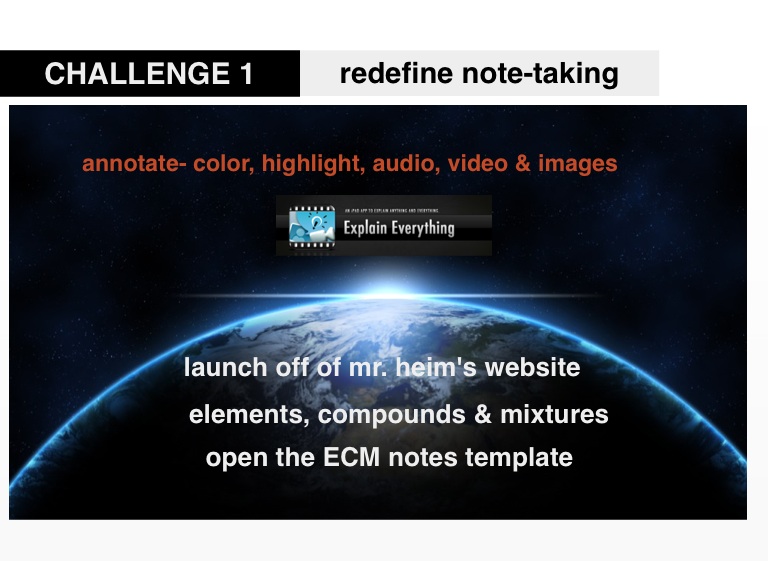
CHALLENGE 1
redefine note-taking
annotate- color, highlight, audio, video & images
launch off of mr. heim's website
elements, compounds & mixtures
open the ECM notes template
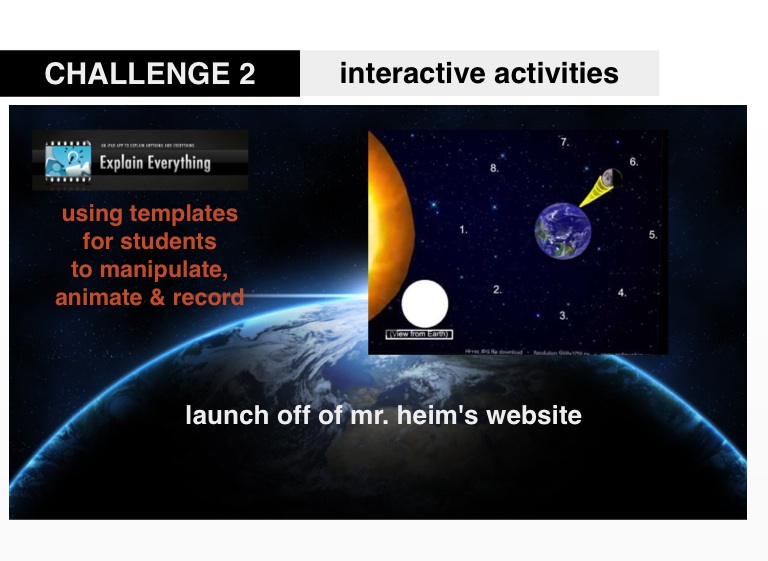
CHALLENGE 2
interactive activities
using templates for students to manipulate, animate & record
launch off of mr. heim's website
explain everything
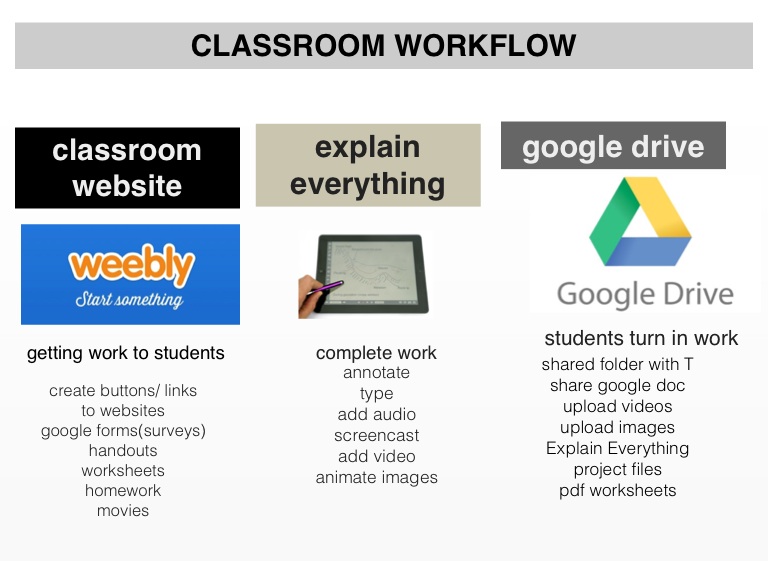
CLASSROOM WORKFLOW
classroom website
google drive
students turn in work
getting work to students
complete work
create buttons/ links to websites google forms(surveys) handouts worksheets homework movies
annotate type add audio screencast add video animate images
shared folder with T share google doc upload videos upload images Explain Everything project files pdf worksheets
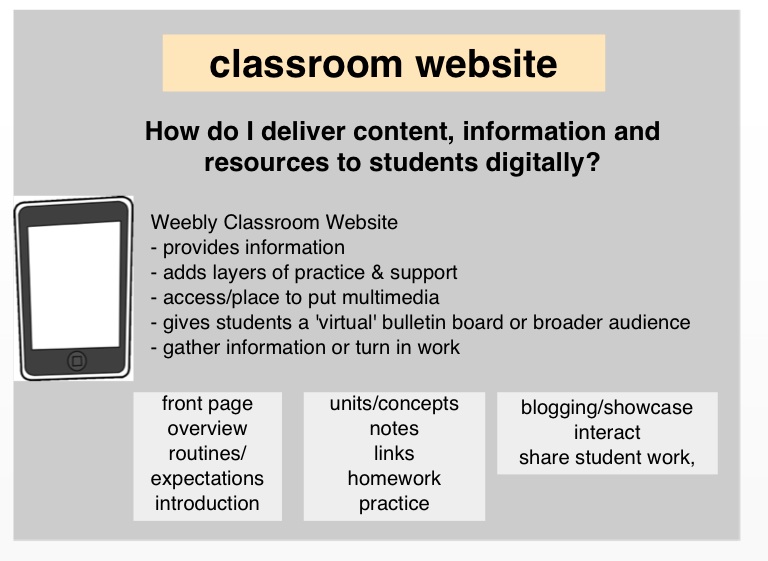
classroom website
How do I deliver content, information and resources to students digitally?
Weebly Classroom Website - provides information - adds layers of practice & support - access/place to put multimedia - gives students a 'virtual' bulletin board or broader audience - gather information or turn in work
front page overview routines/ expectations introduction
units/concepts notes links homework practice
blogging/showcase interact share student work,
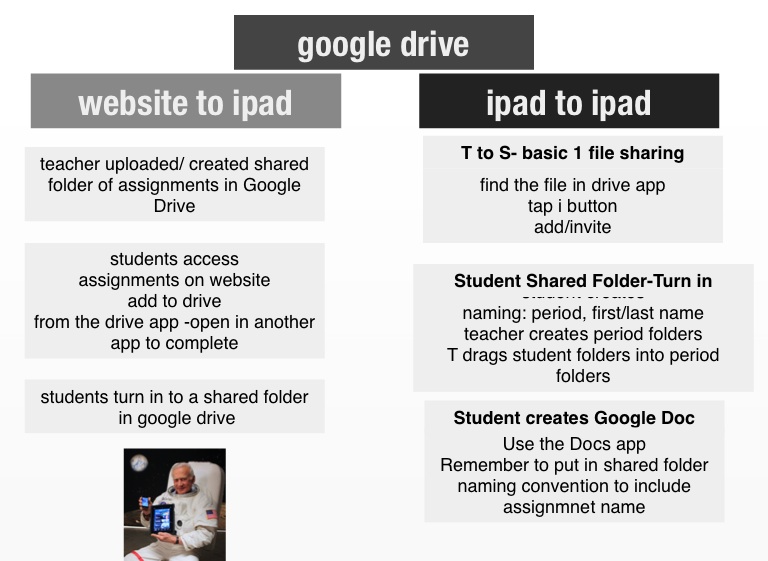
google drive
website to ipad
ipad to ipad
T to S- basic 1 file sharing
teacher uploaded/ created shared folder of assignments in Google Drive
find the file in drive app tap i button add/invite
students access assignments on website add to drive from the drive app -open in another app to complete
Student Shared Folder-Turn in
student creates naming: period, first/last name teacher creates period folders T drags student folders into period folders
students turn in to a shared folder in google drive
Student creates Google Doc
Use the Docs app Remember to put in shared folder naming convention to include assignmnet name
apple tv
Explain Everything
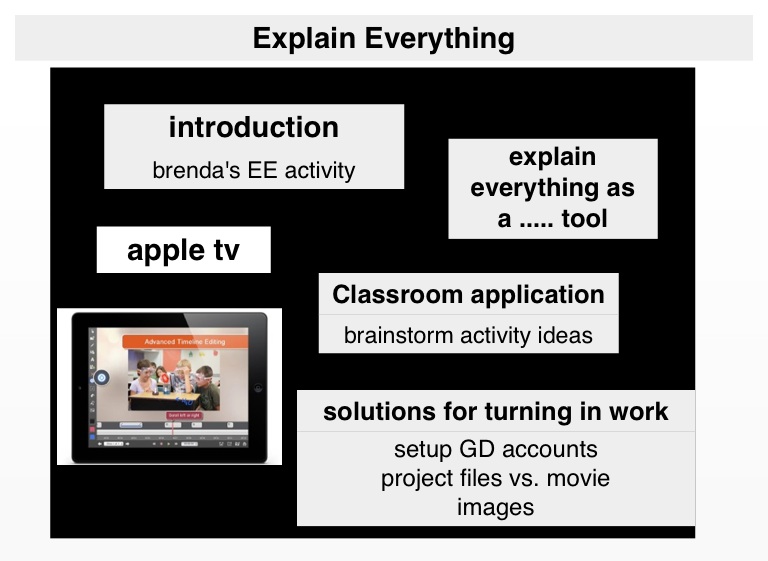
introduction
explain everything as a ..... tool
brenda's EE activity
Classroom application
brainstorm activity ideas
solutions for turning in work
setup GD accounts project files vs. movie images
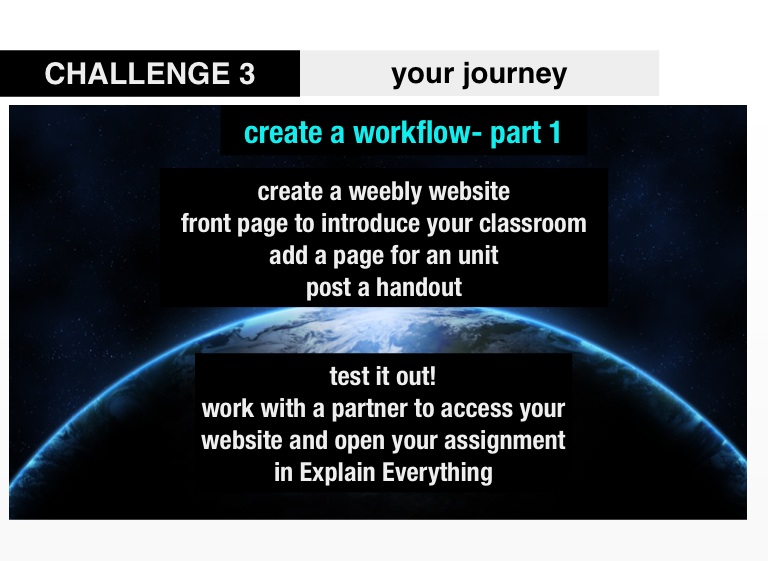
create a workflow- part 1
CHALLENGE 3
your journey
create a weebly website front page to introduce your classroom add a page for an unit post a handout
test it out! work with a partner to access your website and open your assignment in Explain Everything
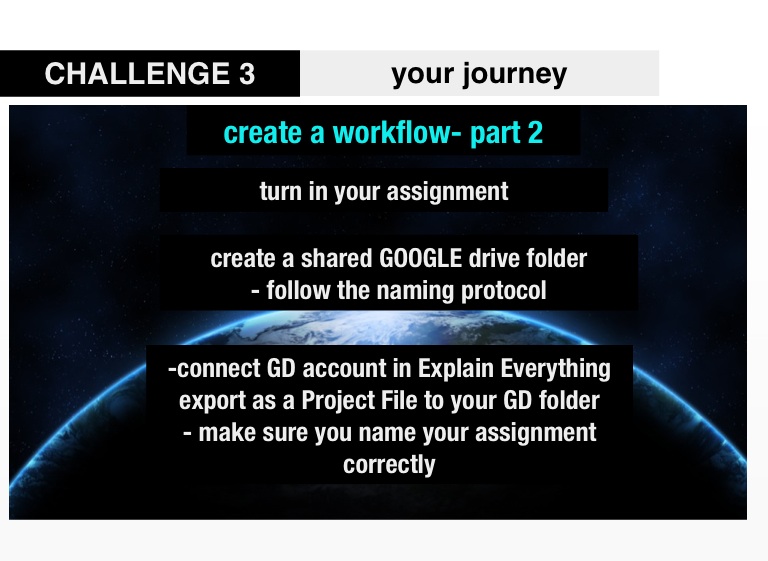
create a workflow- part 2
CHALLENGE 3
your journey
turn in your assignment
create a shared GOOGLE drive folder - follow the naming protocol
-connect GD account in Explain Everything export as a Project File to your GD folder - make sure you name your assignment correctly
RETURNING TO EARTH
questions?